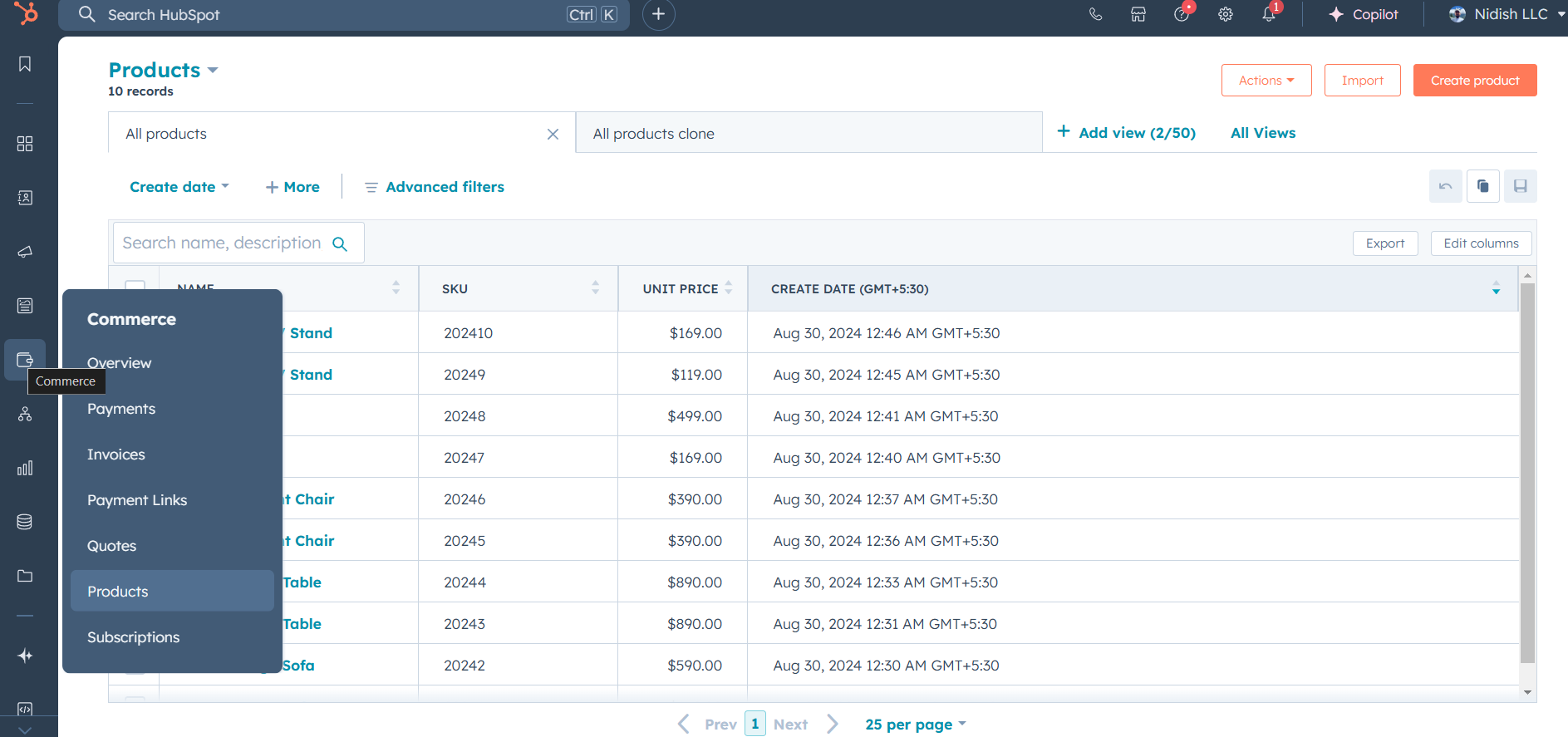
Go to HubSpot Dashboard and hover in commerce icon you can see right side of the demo image than click in Product page. There you can create a product.
Step 2
Create Product Properties.
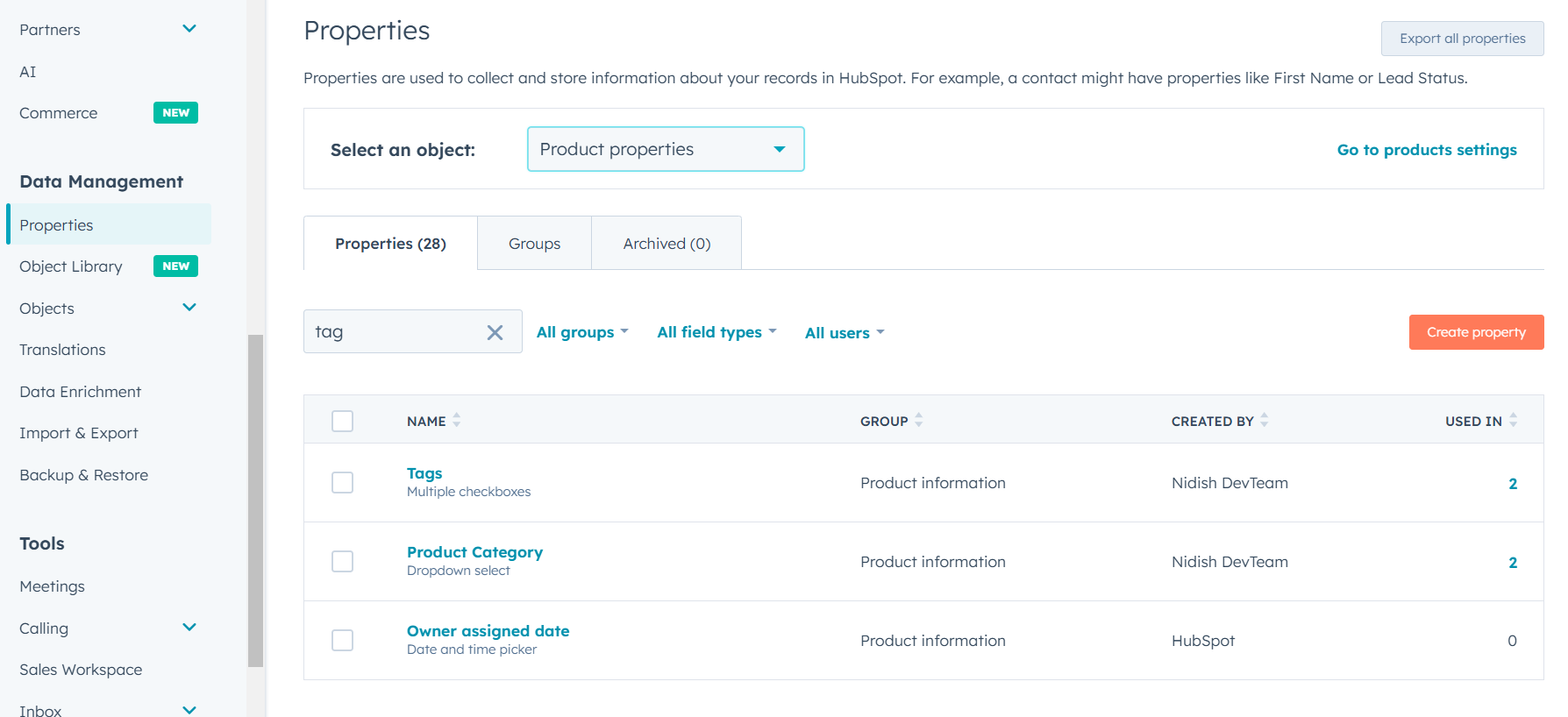
To create Product Properties go to settings>data-management. Then click properties button.
Step 3
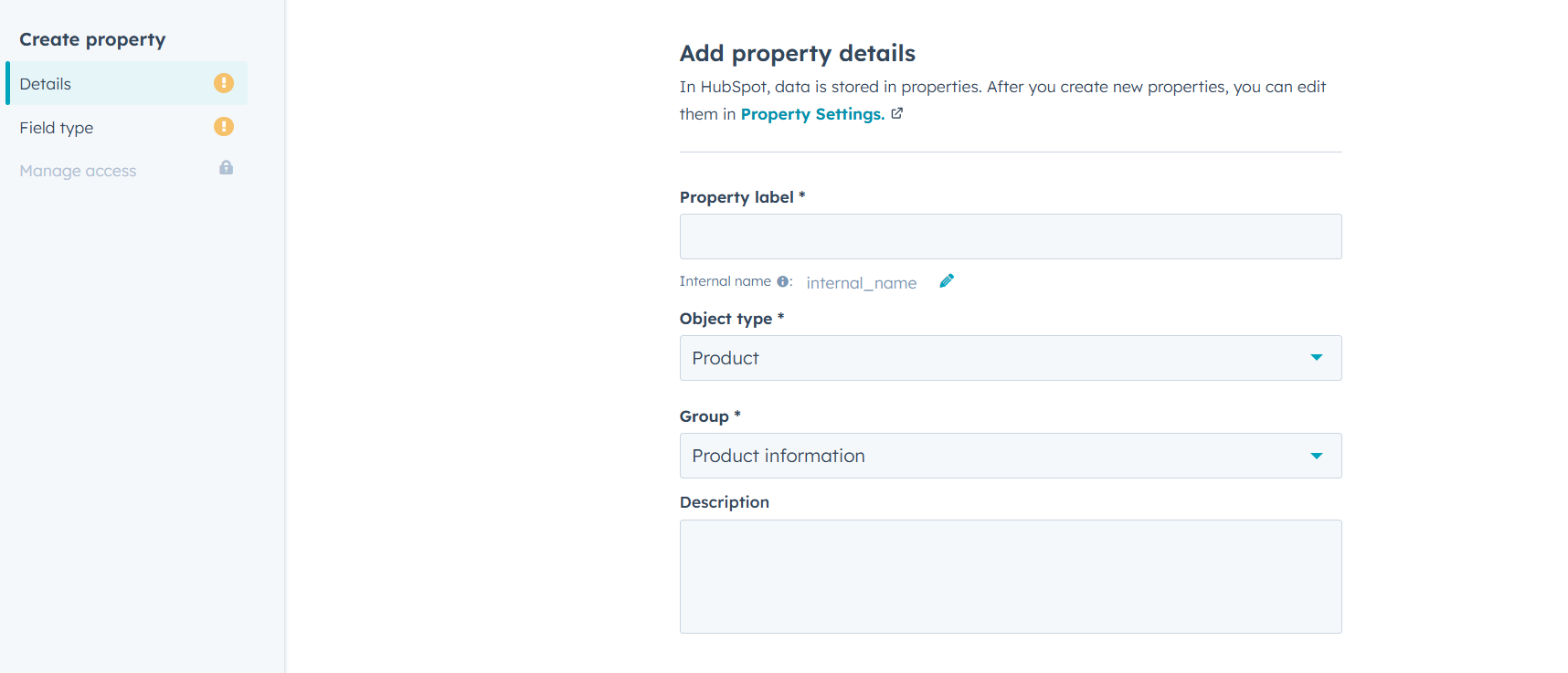
Create new Product Property.
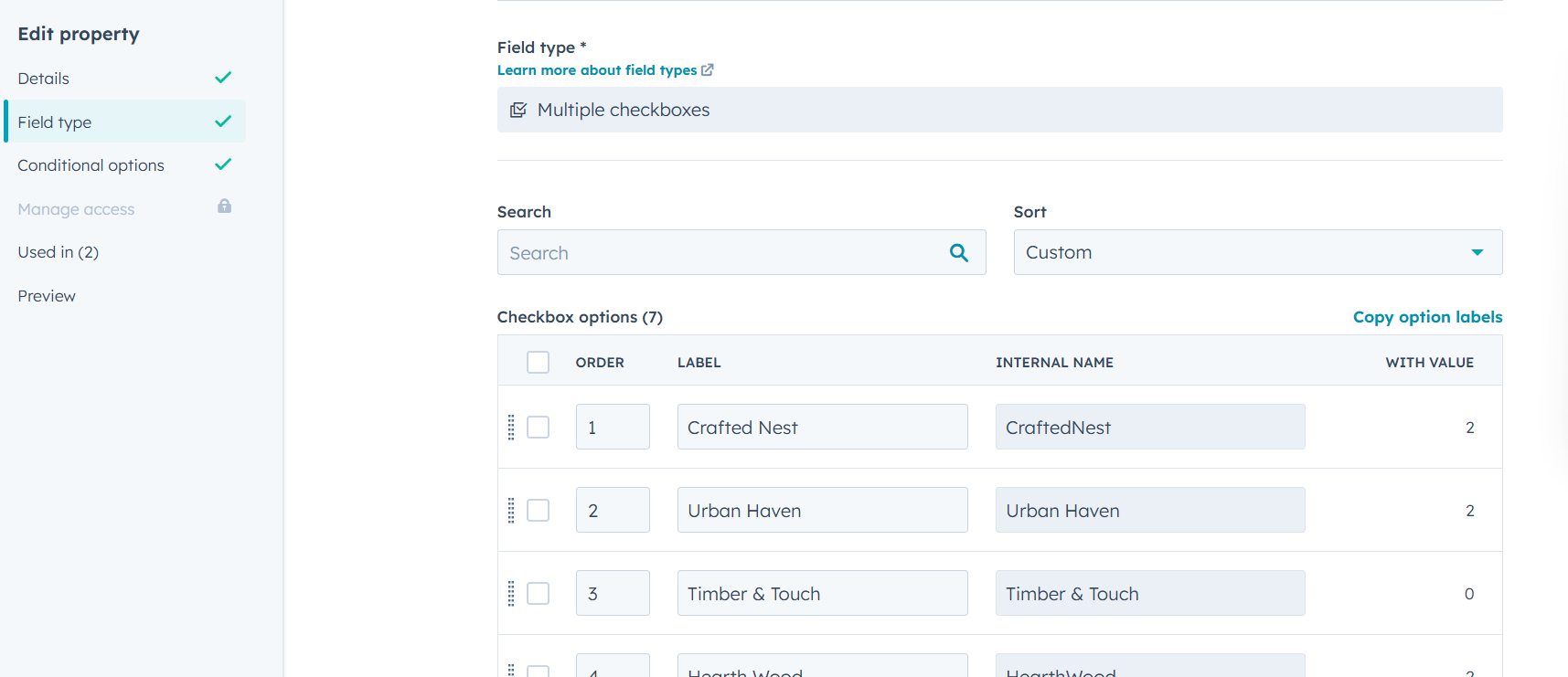
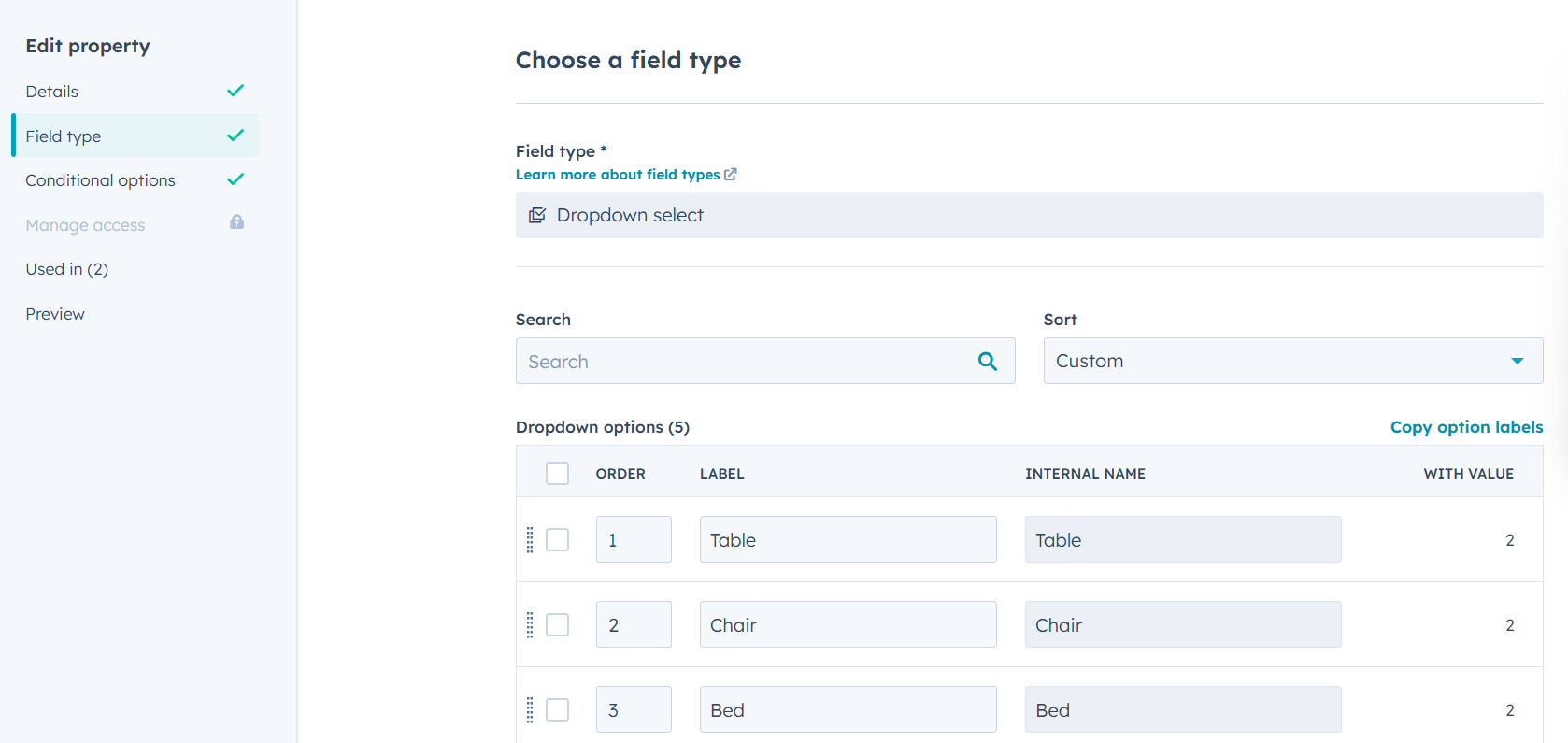
Here you can create custom property like tag, color, and product category. While creating custom properties make sure the field type and internal name should be the same.
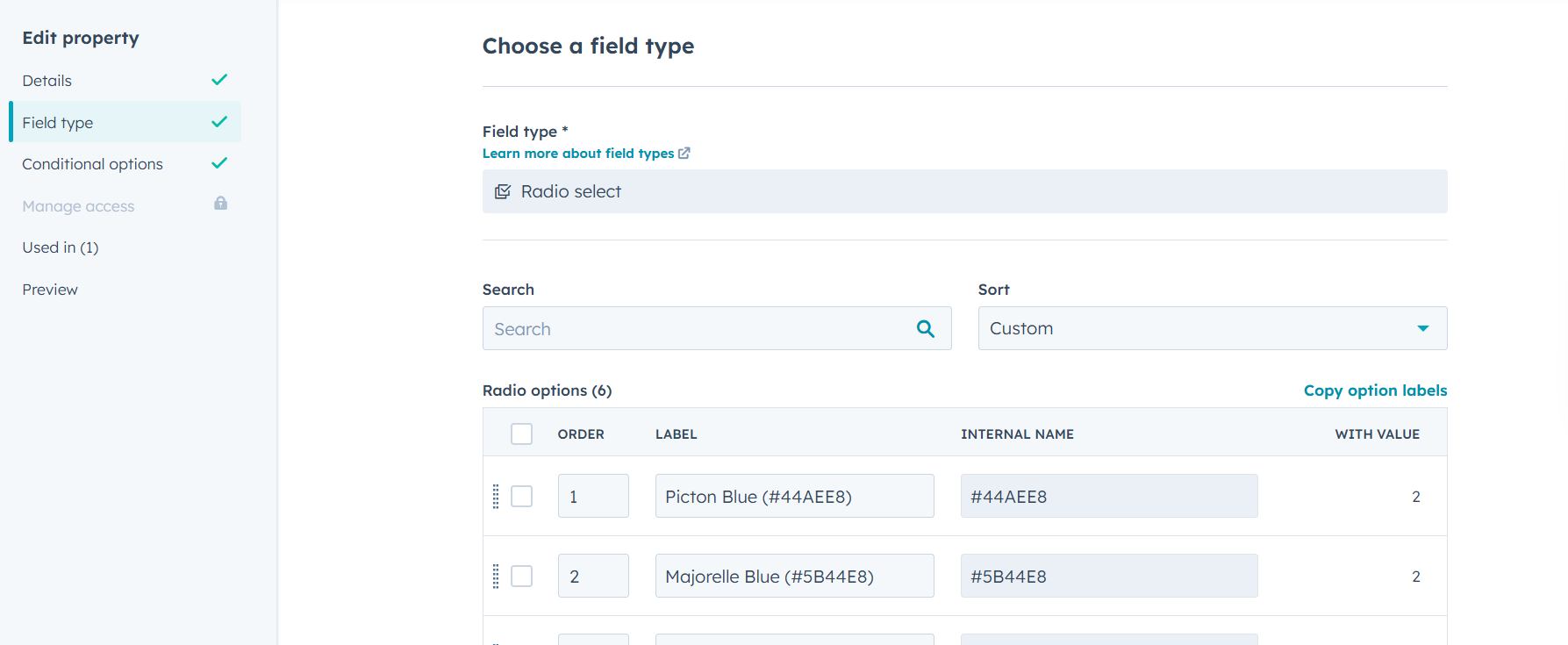
custom properties: 1.Name: Tags (field type = Multiple checkboxes, internal name = tags). 2.Name: Color (field type = radio select, internal name = color). 3.Name: Product Category (field type = dropdown select, internal name =product_category). 4.Name: Inventory Product (field type = single checkbox, internal name =inventory_product).
Step 4
Product Property examples.
Check the image above for the all three custom product property tags, category, color and create accordingly.
Step 5
Product with filter module
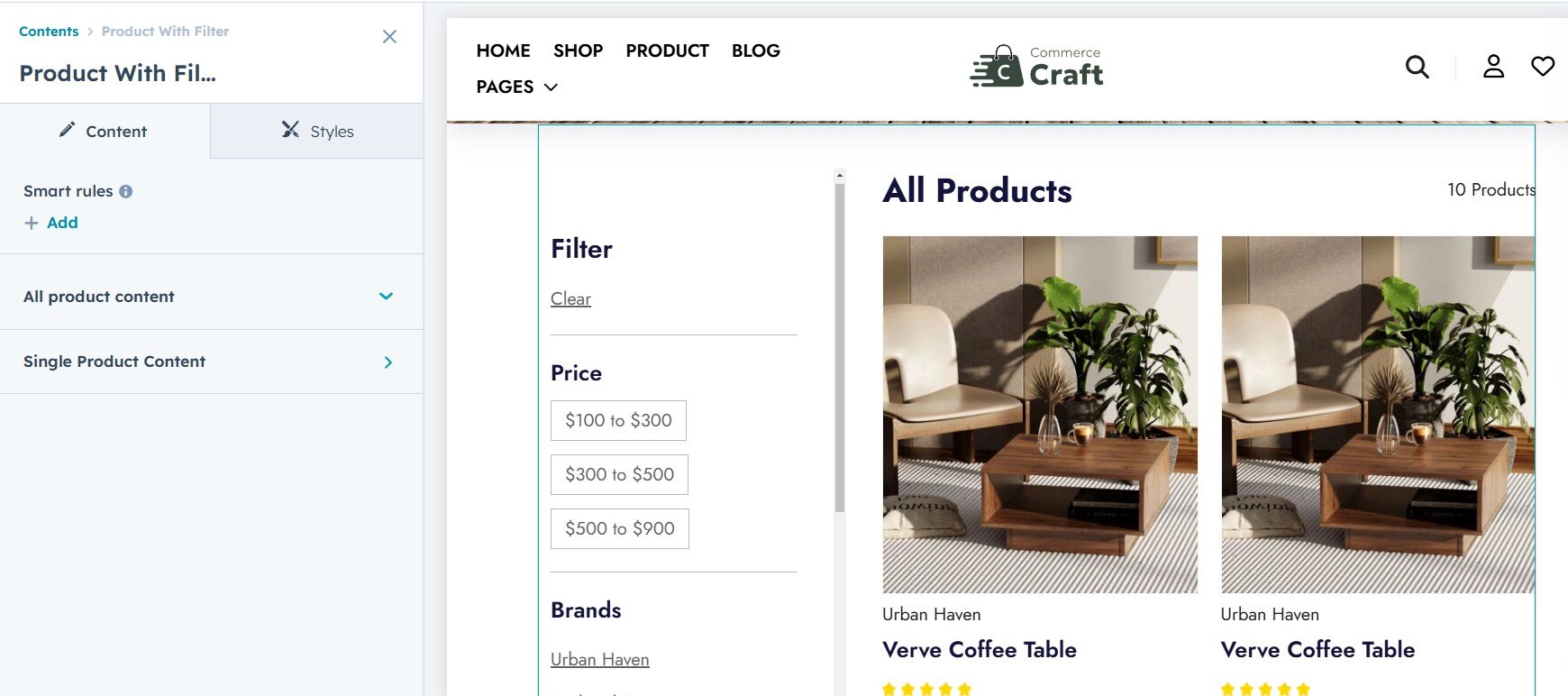
Now, go to any desired page and open the page editor. Add the "Product with Filter" module. If all the steps above have been followed correctly, the product with filter items will appear.

.jpg)